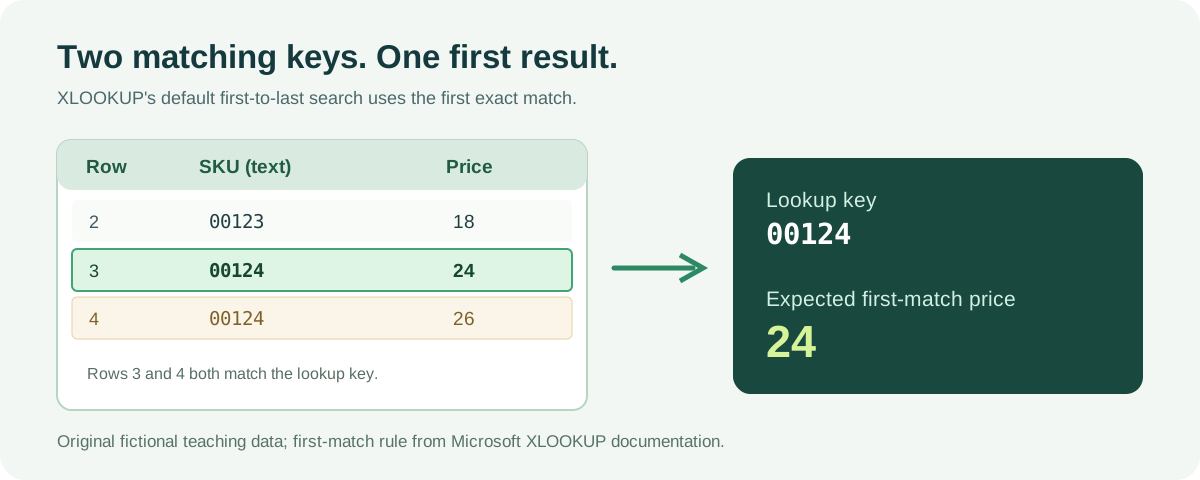
If XLOOKUP is not working, identify the symptom before changing the formula: an unsupported function, a missing match, and a wrong returned row need different fixes. Start with the small exact-match example below, then compare the stored key, range sizes, and duplicate order in your workbook.
Key takeaways
- Excel 2016 and 2019 do not support XLOOKUP.
- Keep identifier keys as text when leading zeros matter.
- A missing-result label does not repair a bad key or an incorrectly chosen row.
Start with a known result
Download the lookup repair input. Import columns A and B into a blank sheet, with the header in row 1 and the identifiers in column A stored as text.
| Row | A: SKU | B: Price |
|---|---|---|
| 2 | 00123 | 18 |
| 3 | 00124 | 24 |
| 4 | 00124 | 26 |
| 5 | 00125 | 31 |
Put the text 00124 in D2. In E2 enter:
=XLOOKUP(D2,$A$2:$A$5,$B$2:$B$5,"Not found",0)The expected result is 24: the first matching SKU is on row 3. Change D2 to 00999 and the expected result is Not found. Change it to 00125 and expect 31. These three checks distinguish a working match, a missing key, and a match near the end of the range.
Microsoft’s XLOOKUP documentation specifies exact matching by default and a first-to-last default search. The explicit 0 above makes the intended exact-match rule visible during review.
Diagnose the symptom
| Symptom | Inspect first | Repair to try |
|---|---|---|
#NAME? or _xlfn.XLOOKUP |
Excel edition and function spelling | Use a supported edition or the fallback below. |
Not found or #N/A |
Key text, imported types, spaces, and search range | Compare the source key with D2 before cleaning either. |
#VALUE! |
Lookup and return range dimensions | Align A2:A5 with B2:B5. |
| A plausible but wrong price | Repeated IDs, sorting, match/search arguments | Decide whether the first or last occurrence is the business rule. |
Check version support before troubleshooting data. Microsoft explicitly excludes Excel 2016 and Excel 2019, even though those editions can open a workbook containing the function. For this vertical, single-value example, a legacy alternative is:
=IFNA(INDEX($B$2:$B$5,MATCH(D2,$A$2:$A$5,0)),"Not found")That fallback preserves the first exact-match intention; it does not reproduce every XLOOKUP feature. Recheck the three expected results after substituting it.
Fix the key without destroying its meaning
A product code is an identifier, not a quantity. If import changed 00124 into 124, changing its display to five digits may hide the damage without fixing the stored value. Reimport the original text using the CSV preservation procedure.
Microsoft’s lookup error checklist includes mismatched types and extra spaces. Use =ISTEXT(A3) and =ISTEXT(D2) to inspect types, and =LEN(A3) and =LEN(D2) to compare lengths. Equal lengths alone do not prove equal text. If a trailing space is genuinely invalid, clean a helper column with =TRIM(A2), inspect it, then look up against that helper. Do not overwrite source IDs in bulk merely because a formula returned no result.
For a numeric measure, conversion can be appropriate. For identifiers, preserve both sides as text according to the source specification. Mixed-type matching and unusual Unicode spaces need a check in the actual workbook; this guide does not assume all engines coerce them alike.
Resolve duplicate keys deliberately
The sample repeats 00124 with prices 24 and 26. To request the last match explicitly:
=XLOOKUP(D2,$A$2:$A$5,$B$2:$B$5,"Not found",0,-1)With D2 set to the text 00124, expect 26. Last in the current row order does not necessarily mean latest by date. If the intended rule is latest effective price, retain an effective-date column and establish a sort rule first. Review safe duplicate removal before deleting either row.
Do not use binary search modes merely to remove an error; they require appropriately sorted lookup data and can produce invalid results when that requirement is unmet. Keep ordinary search for this small repair case.
Scope and final recheck
Examples use English function names and comma argument separators. Regional settings may require semicolons or localized names. Clear room beside a formula that returns multiple columns; the sample above returns one value only. For cross-product handoffs, consult the formula compatibility checklist.
The input and expected first/last/missing outcomes were checked with JavaScript assertions. Excel was not used to execute these formulas during preparation. Recalculate the three checks in your Excel edition before applying the repair to production data. The formula finder can help choose a lookup pattern; the lookup key and duplicate policy remain your decision.
Sources & verification
Found an error or a product change? Send a correction with this page URL and the evidence.