Answer first: use the narrowest error handler that matches the problem
Use IFNA when a missing lookup match is an expected outcome. Use IFERROR only when you have decided that every error from a specific calculation should receive the same fallback. For a broken reference, wrong argument or invalid input, showing a visible error is often safer than replacing it with an empty cell.
Both Excel and Google Sheets support these functions. Microsoft documents IFERROR(value, value_if_error) as handling multiple formula errors, including #DIV/0!, #REF! and #N/A. Microsoft and Google document IFNA as handling only #N/A. Google’s Sheets version of IFERROR also permits the replacement argument to be omitted; the Excel syntax documents that argument as required.
This distinction matters when a workbook is used to make a decision. A dashboard full of blank-looking cells may look tidy while hiding a broken data import or formula. The safer goal is understand, classify and then handle the error, not simply make a red error indicator disappear.
This tutorial uses two original, fictional worksheets with precise inputs, formulas and expected results. The examples are reasoned from official function definitions. They were not executed in the native Excel or Google Sheets applications for this article.
IFERROR vs IFNA at a glance
| Question | IFERROR | IFNA |
|---|---|---|
| Which errors trigger the fallback? | Formula errors including #N/A, #REF!, #VALUE! and #DIV/0! | #N/A only |
| Can a broken reference stay visible? | Not if the error is wrapped and a fallback is returned | Yes, because #REF! is not #N/A |
| Good example use | Known display-only division fallback, after source checks | Clear message for an exact lookup key that is absent |
| Common misuse | Turning every formula failure into an apparently valid zero | Using it as a substitute for validating a lookup range |
Official references: Microsoft IFERROR, Microsoft IFNA, Google Sheets IFERROR, and Google Sheets IFNA.
Worksheet A: calculate a price per unit without hiding bad data
Open a new workbook and enter the following fictional values in cells A1 through B5. These are tiny, deliberately chosen inputs, not a sample of real sales.
| Row | A — Units | B — Revenue | Raw B/A result |
|---|---|---|---|
| 2 | 4 | 80 | 20 |
| 3 | 0 | 75 | #DIV/0! |
| 4 | 5 | 100 | 20 |
| 5 | missing (text) | 50 | A formula error from nonnumeric input |
Type Units in A1 and Revenue in B1; place the numeric or text values on their specified rows. In C2, type =B2/A2 and copy C2 down through C5.
Expected interpretation: rows 2 and 4 can be computed mathematically; row 3 divides by zero; row 5 has text in a numeric denominator. A formula should not silently report a valid unit price for either invalid row. Native error wording may differ by product, locale or input representation. The mathematical checks were reviewed manually; native application results were not recorded.
The tempting shortcut
A common pattern is:
=IFERROR(B2/A2,0)When copied down, this replaces errors with numeric zero. In this example, it makes row 3 (no units) and row 5 (nonnumeric units) look like legitimate zero-valued results. If another report totals or averages the unit-price column, your choice of placeholder could affect the result.
A better display-only version at least makes the failure visible:
=IFERROR(B2/A2,"CHECK INPUT")This still catches every error, so it is not a fix. It is appropriate only if CHECK INPUT tells a reviewer to inspect the source before making a decision.
A more diagnostic alternative
If your explicit rule is “do not divide by zero,” you can separate that known condition from unexpected failures:
=IF(A2=0,"CHECK UNITS",B2/A2)For row 3, the result should be CHECK UNITS. Row 5 still attempts to divide by the text missing, so it remains an error rather than being turned into a plausible price.
If a business policy treats missing units, zero units and nonnumeric units differently, write those rules down first. A single IFERROR(...,0) would otherwise combine distinct problems.
Do not automatically treat a zero denominator as zero revenue per unit. It may mean the underlying record needs correction, the metric is undefined, or the row must be excluded according to a documented policy.
Worksheet B: distinguish “not found” from a broken lookup
Make a separate table in G1:H4:
| Cell G — SKU | Cell H — Price |
|---|---|
| G2: P-101 | H2: 12 |
| G3: P-102 | H3: 19 |
| G4: P-103 | H4: 25 |
Put P-102 in F2 and P-999 in F3. These are fictional product codes.
A regular exact-match lookup is:
=VLOOKUP(F2,$G$2:$H$4,2,FALSE)The second column is the price. With this input, the expected result for F2 is 19. Change F2 to F3 in the formula, and the expected result is #N/A because P-999 is absent.
The recommended narrow fallback for a missing key is:
=IFNA(VLOOKUP(F3,$G$2:$H$4,2,FALSE),"NOT FOUND")Expected display: NOT FOUND. The message describes a business-relevant state: this requested code was not present in the defined lookup range.
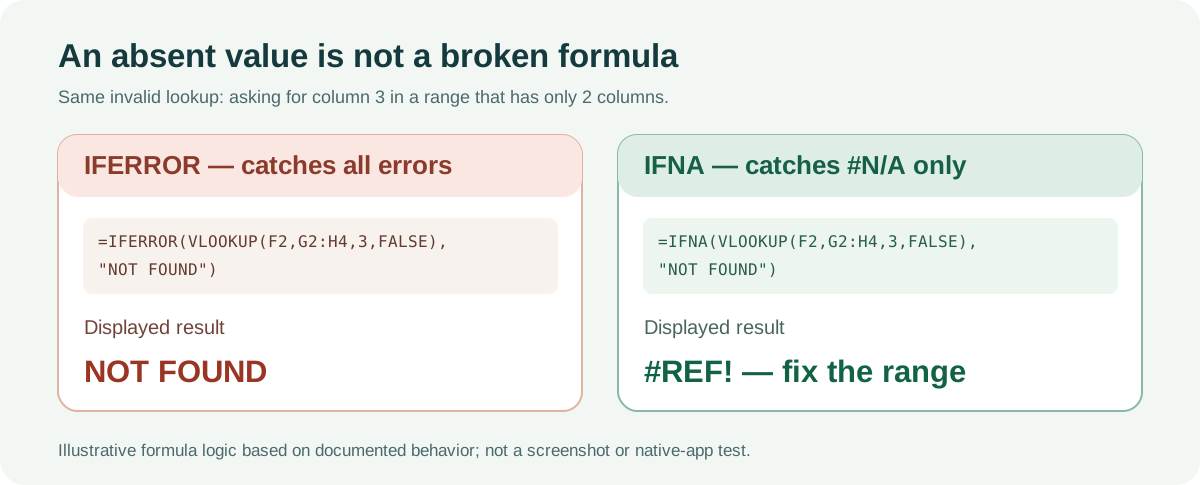
Now intentionally use an invalid column index with an otherwise valid lookup:
=VLOOKUP(F2,$G$2:$H$4,3,FALSE)The specified range G:H has only two columns, but the formula requests column 3. This should produce a reference error instead of a price. Google’s official VLOOKUP troubleshooting guidance identifies this as a #REF! cause.
Compare the two wrappers:
=IFERROR(VLOOKUP(F2,$G$2:$H$4,3,FALSE),"NOT FOUND")

=IFNA(VLOOKUP(F2,$G$2:$H$4,3,FALSE),"NOT FOUND")
The first wrapper mislabels a broken formula as “NOT FOUND.” The second leaves the reference error visible, which is the more useful signal for fixing the formula.
This is the central rule of the guide: an absent value and a broken lookup are not the same event.
Microsoft and Google document VLOOKUP exact matching when the last argument is FALSE. See Google’s VLOOKUP reference and Microsoft’s VLOOKUP reference.
Which errors are safe to replace?
Use a brief decision procedure rather than selecting a fallback by appearance.
- Read the raw error first. Temporarily remove the wrapper or inspect the unwrapped formula in a copy of the workbook. Preserve the original sheet before making bulk edits.
- Identify its cause. Is a lookup key genuinely missing, a divisor zero, a cell reference broken, a range too narrow, or a value stored in an unexpected type?
- Define the intended meaning of the fallback.
NOT FOUND,CHECK INPUT, an empty-looking string, and numeric zero are not interchangeable. - Choose the narrowest mechanism. For
#N/Alookup misses, start withIFNA. For a known zero-divisor policy, use an explicit condition. UseIFERRORif the workbook genuinely treats all formula errors in that expression alike. - Keep a diagnostic view. For operational or financial reports, preserve an accessible column, exception list, or source worksheet showing what went wrong.
- Check downstream effects. Totals, averages, charts, exports and later lookups may react differently to a string, blank-looking result, numeric zero or real error.
A fallback can improve presentation while reducing observability. Decide which is more important for the context, and make that decision intentional.
Why “blank” can be misleading
Both functions can return a text value such as "" when you explicitly use it as the fallback:
=IFNA(VLOOKUP(F3,$G$2:$H$4,2,FALSE),"")This makes a missing code display as a blank-looking cell, but it does not add a price or validate the input. Downstream formulas and exports may need to distinguish an empty string from a truly empty cell.
There is also a product-specific syntax difference: Google’s IFERROR(value,[value_if_error]) allows the second argument to be omitted, in which case an error produces a blank result. Microsoft’s documented IFERROR(value,value_if_error) syntax requires the second argument. For cross-platform workbooks, specify your replacement explicitly instead of relying on omitted arguments.
A workbook may use semicolons rather than commas as function separators, depending on spreadsheet locale and settings. Adapt the argument delimiters to the destination environment instead of assuming every pasted formula uses the same regional syntax.
Five cases to test after changing a formula
Use this original manual review checklist. Treat the “expected” statements as logic derived from the formulas and input tables above, not as recorded native-app test results.
| Case | Input/problem | Expected outcome to verify |
|---|---|---|
| C01 | Valid division 80 / 4 | 20 |
| C02 | 75 / 0 | Raw #DIV/0! or explicit CHECK UNITS policy |
| C03 | 50 / text missing | Unexpected type remains visible for review |
| C04 | Lookup P-999 with IFNA | NOT FOUND |
| C05 | VLOOKUP index 3 in two-column range with IFNA | Reference error remains visible |
To verify the native behavior yourself, create the two tables in a blank Excel workbook and a blank Google Sheet. Record the application/edition, locale, exact formula, observed output, and test date. Compare each observed output to the expected outcome and retain any discrepancy rather than editing the expected result to match the program.
This guide does not report having completed that native-application execution. The formulas and expectations were checked against the cited primary documentation and the constructed data, not through a measured cross-app trial.
Common mistakes and safer fixes
Mistake: IFERROR(...,0) in every calculated column
Why it matters: a real calculation failure becomes a numeric value. A reader cannot see whether zero means “none,” “missing” or “broken.”
Safer alternative: show CHECK INPUT for unresolved problems, or use a documented case-specific rule before you decide how to calculate aggregates.
Mistake: using IFERROR on every exact-match lookup
Why it matters: a #REF! or #VALUE! from a defective formula is replaced by the same label as a missing key.
Safer alternative: use IFNA for missing-match behavior and investigate any other error. A broken range is not evidence of an absent customer or product.
Mistake: hiding an error before you know why it appeared
Why it matters: a clean dashboard may conceal a bad import or incorrect cell type. Error handling should be the last step of a checked workflow, not the first action during troubleshooting.
Safer alternative: inspect raw inputs, formula arguments, lookup keys, range dimensions and data types first. Only then choose a fallback aligned with the business question.
Mistake: expecting IFNA to fix #DIV/0!
Why it matters: IFNA reacts only to #N/A. A division-by-zero error has a different meaning and should remain visible unless your workflow deliberately handles it.
Safer alternative: check the denominator explicitly, validate the input, and only then create an output value that accurately represents your policy.
Mistake: assuming every blank-looking result is a missing cell
Why it matters: an error handler can return the empty string "". What looks blank in the grid may be a value produced by a formula.
Safer alternative: inspect the formula and use a clear status column when the distinction matters. Do not treat visual appearance as proof of data quality.
A compact decision tree to keep beside your sheet
Is the formula returning an error?
  No → Keep the original value; no fallback needed.
  Yes → What kind?
    #N/A from an expected exact lookup miss?
       → Consider IFNA(...,"NOT FOUND").
    Zero divisor, known and policy-defined?
       → Check denominator with IF, then report status.
    #REF!, #VALUE!, or an unexpected failure?
       → Leave visible; inspect ranges, inputs and types.
    A presentation view where ALL errors mean the same thing?
       → Consider IFERROR with an explicit, honest label.
Always keep an auditable diagnostic path.
This decision tree is editorial guidance for ordinary spreadsheet workflows. It is not a substitute for your organization’s accounting, compliance or data-quality requirements.
How this fits the other GuideHollow Sheets guides
If an exact lookup does not find the value you expected, read How to Fix XLOOKUP Not Working in Excel before deciding to hide #N/A. For imported identifiers that have changed shape, see How to Import CSV Files Without Losing Leading Zeros or Changing Dates. For a reproducible multi-criteria calculation, compare SUMIFS with Dates.
You can also use the Formula Finder for curated function examples. It is a reference tool, not an Excel execution environment.
Sources, creation method and limits
This educational article was drafted with AI assistance and editorially checked against primary documentation reviewed on October 24, 2026:
- Microsoft Support — IFERROR function: syntax, covered error types and replacement behavior.
- Microsoft Support — IFNA function: narrow
#N/Ahandling. - Google Docs Editors Help — IFERROR: optional fallback and blank behavior.
- Google Docs Editors Help — IFNA:
#N/Abehavior. - Google Docs Editors Help — VLOOKUP: exact matching and column-index errors.
- Microsoft Support — VLOOKUP: exact-match syntax and lookup range requirements.
The input tables, decision tree and checklist are original fictional teaching fixtures. No real customer data was collected. No one executed these exact samples in Excel or Google Sheets for this article, so version-specific native output screenshots or benchmark claims are not provided. If observed behavior differs, prioritize the reproducible app result, supported version and current vendor documentation, and report the discrepancy for correction.
Sources & verification
- support.microsoft.com — reference ↗
- support.microsoft.com — reference ↗
- support.google.com — reference ↗
- support.google.com — reference ↗
- support.google.com — reference ↗
- support.microsoft.com — reference ↗
Found an error or a product change? Send a correction with this page URL and the evidence.